
 by
by 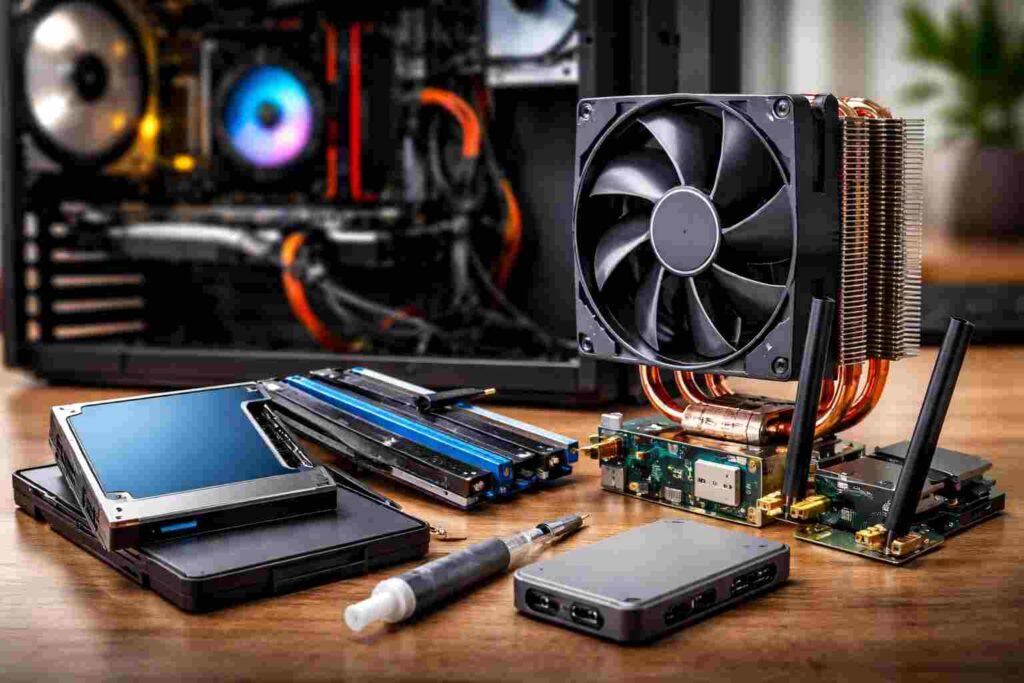
The most affordable PC upgrades are a low-cost SSD, RAM to match, case fans, a tower cooler, thermal paste, a Wi-Fi 6 adapter, a USB hub, and an SSD enclosure. Each fixes a certain performance issue.
Only cheap upgrades that aim to address the actual bottleneck are effective. A snappier appearance will not assist in case your PC is truly constrained by storage, memory, heat, unreliable wireless, or absent ports.
Quick Comparison
| Upgrade | Best for | Typical price | Buy it if | Skip it if |
|---|---|---|---|---|
| SATA SSD | Slow boot and launches | $25-$45 | Your PC still uses an HDD | You already boot from SSD |
| Matched RAM kit | Browser lag, multitasking | $25-$50 | Memory usage stays high | RAM usage is low |
| 120mm case fans | High temps, loud system | $15-$30 | Airflow is weak | Your case already runs cool |
| Budget tower cooler | Hot, noisy CPU | $20-$45 | Stock cooling is struggling | Case clearance is limited |
| Thermal paste | Rising CPU temps | $5-$12 | Cooler contact is old | Temperatures are normal |
| Wi-Fi 6 adapter | Weak wireless | $20-$45 | Your adapter is outdated | The issue is your router |
| USB-C hub / card | Too few ports | $15-$45 | Swapping devices wastes time | Ports are not the issue |
| SSD enclosure | Easy cloning, reuse | $15-$30 | You want painless migration | You prefer a clean reinstall |
1) Budget SSD
If your system still runs on a hard drive, start here. A basic SSD cuts boot delays, improves app launches, and makes an aging PC feel responsive again.
This is the biggest under-$50 upgrade for HDD-based systems because mechanical drives slow down every normal task. Skip it only if Windows already runs from a healthy SSD.
2) Matched RAM
Most underperforming PCs only lack RAM. Once memory is occupied, the system begins depending on storage leading to freezes, reloading of tabs and crude multi-tasking.
A matched memory kit is the right fix if your browser, office apps, or light creative work feel heavy. Two matching sticks also let the system run in dual-channel mode, which is better than adding one random module.
3) Two Case Fans
Heat is a performance penalty. If your case traps warm air, the whole system runs hotter, louder, and less efficiently.
Two decent 120mm fans—front intake and rear exhaust—can improve airflow for very little money. This is a strong buy for cramped cases and prebuilt systems with weak factory cooling.
4) Budget Tower Cooler
A weak stock cooler can make a capable CPU act slow. If the fan ramps hard under normal use or performance drops during longer sessions, a tower cooler is a practical fix.
Better cooling helps the CPU hold stable clocks and reduces noise. Check socket support and case height clearance before buying.
5) Thermal Paste
Thermal paste is a low-cost maintenance upgrade with real value. Old or poorly applied paste can reduce heat transfer and push CPU temperatures higher than they should be.
This makes sense on older systems, recently opened systems, or PCs with rising temperatures and no obvious airflow issue. It will not fix a bad cooler, but it can restore proper contact.
6) Wi-Fi 6 Adapter
Weak wireless often gets blamed on the whole PC. In many cases, the real problem is an old network adapter.
A USB Wi-Fi 6 adapter is the easy fix. A PCIe Wi-Fi card is usually the better permanent solution for desktops because it offers stronger antennas and cleaner installation.
7) USB-C Hub or Expansion Card
Not every upgrade is about speed. Some upgrades remove daily friction.
A USB-C hub is ideal for thin laptops with too few ports. A USB expansion card is better for desktops that need more reliable access to storage, displays, and accessories.
8) SSD Enclosure
An SSD enclosure is the smartest support upgrade on this list. It makes cloning easier when moving to a new SSD, then turns the old drive into portable storage.
That gives you two benefits from one small purchase. It is especially useful if you want a smoother migration without wasting the old drive.
Also Read: 10.10.0.1 Piso WiFi Pause Time Guide: Login, Reset & Fix!
What to Buy First
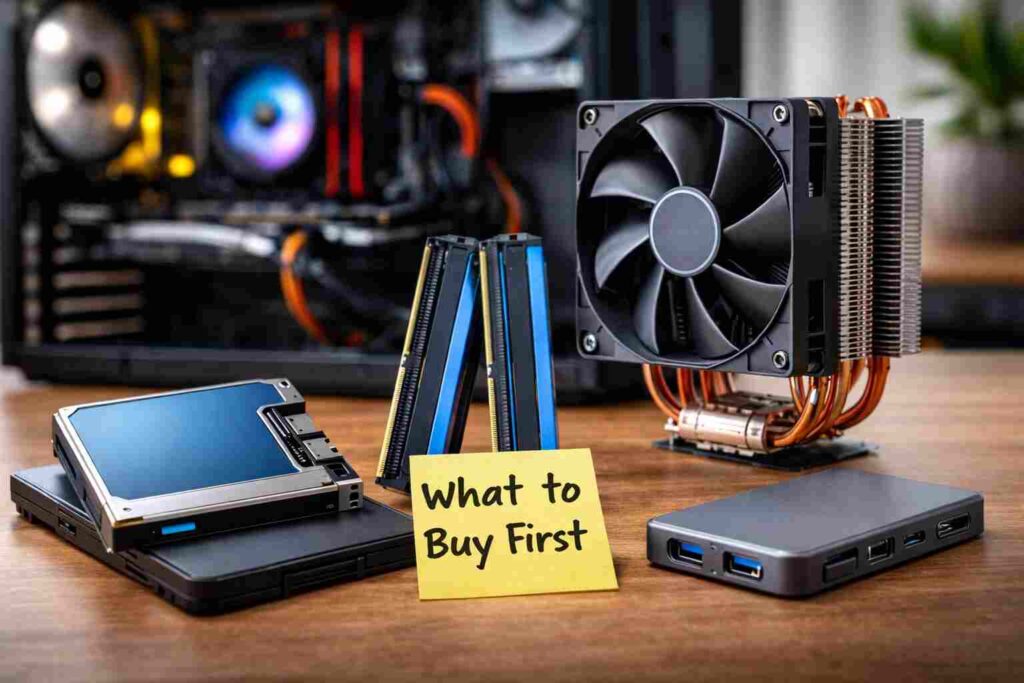
Use a firm rule. If the PC boots from an HDD, buy an SSD first.
If it slows down during multitasking, buy RAM. If it runs hot and loud, fix airflow, the CPU cooler, or the thermal paste before wasting money elsewhere.
The best PC upgrades under $50 are not the flashiest ones. They are the upgrades that remove the bottleneck you can already feel.
