


A quick screenshot can save time, stop confusion, and show exactly what is happening on your screen. If you want to learn <strong>how to screenshot on windows</strong>, you do not need special software or advanced computer skills.
Windows already includes several built-in screenshot methods. Some are perfect for speed, while others give you better control when you need to capture one window, a small section, or a full page.
Once you know the right shortcut, how to screenshot on windows becomes one of the handiest skills on any PC.
Screenshot shortcuts at a glance
Windows supports PrtScn, Windows + PrtScn, Alt + PrtScn, and Windows + Shift + S as its main built-in screenshot methods.
| Method | What it does | Output |
|---|---|---|
| PrtScn | Captures full screen | Clipboard |
| Alt + PrtScn | Captures active window | Clipboard |
| Windows + PrtScn | Saves full screen | Pictures > Screenshots |
| Windows + Shift + S | Opens snip overlay | Clipboard, then save |
How to screenshot on windows with keyboard shortcuts
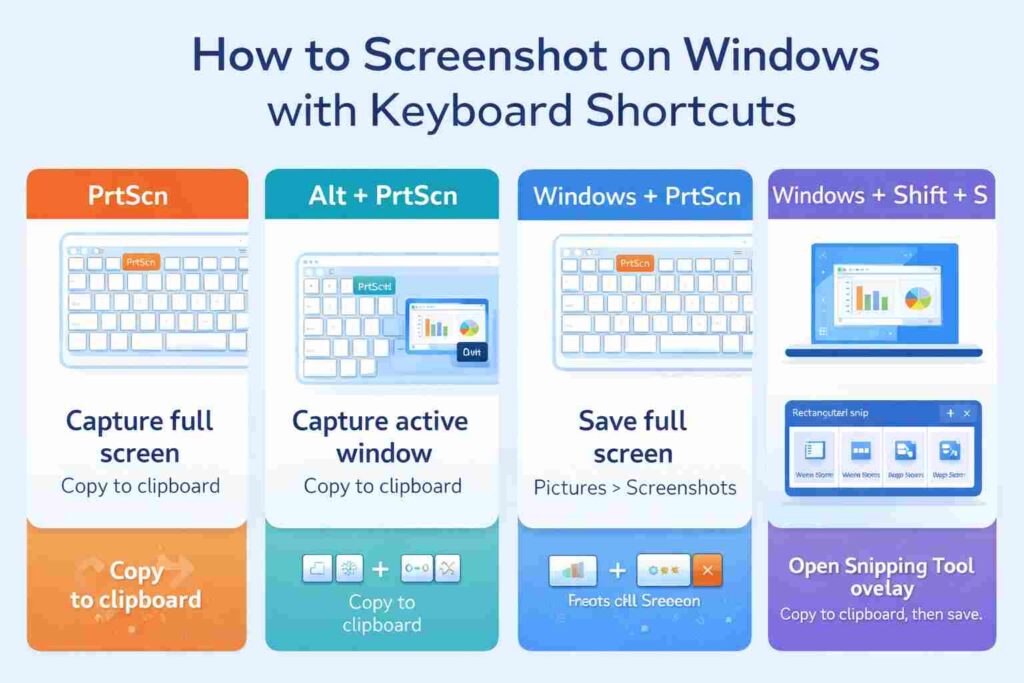
For speed, the keyboard is still the easiest answer. Press PrtScn to copy the entire screen, then paste it into Paint, Word, or a message with Ctrl + V.
If you want an image file saved automatically, press Windows + PrtScn. Windows normally stores it in Pictures > Screenshots.
To capture only one app window, use Alt + PrtScn. This is useful for tutorials, bug reports, and work documents because it keeps the screenshot clean. It is one of the most practical ways to learn how to screenshot on windows without extra editing.
On some laptops, Print Screen works only when paired with Fn.
How to use Snipping Tool
If you want more control, press Windows + Shift + S. The Snipping Tool overlay lets you choose rectangular, freeform, window, or full-screen snips. Microsoft lists these as the main capture modes in the app.
This is often the best method because you can capture only what matters. For example, instead of sending your whole desktop, you can snip only an error message, a receipt total, or a chart.
The current Snipping Tool also supports screen recording.
Where screenshots are saved
Many people search how to screenshot on windows because they cannot find the file afterward.
Here is the simple rule:
- PrtScn and Alt + PrtScn copy the shot to the clipboard.
- Windows + PrtScn saves a file.
- Windows + Shift + S usually copies first, then lets you save from the notification.
Most saved images go to Pictures > Screenshots. If your Pictures folder is synced, the file may appear in OneDrive instead.
How to take a scrolling screenshot
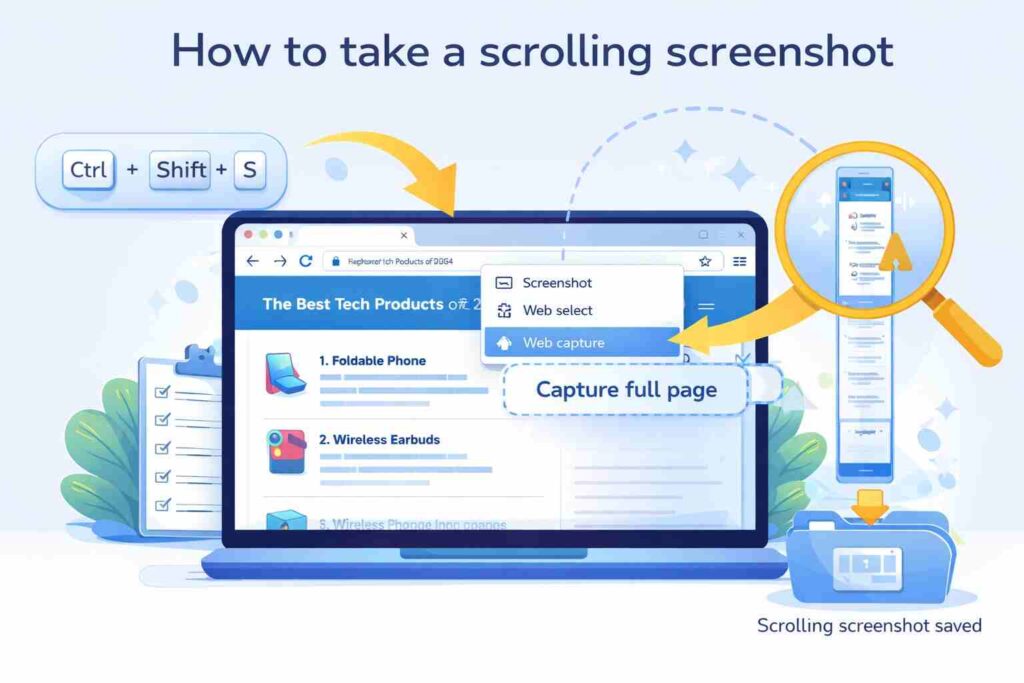
Windows does not have one built-in scrolling screenshot tool for every app, but Microsoft Edge can capture a full webpage. Press Ctrl + Shift + S in Edge and choose the full-page option.
That makes Edge a useful built-in workaround for long pages.
Common screenshot fixes
If how to screenshot on windows is not working, try this quick checklist:
- Test Fn + PrtScn.
- Use Windows + Shift + S instead.
- Check Pictures and OneDrive folders.
- Open Snipping Tool manually from Start.
- Restart the app or update Windows if shortcuts stop responding.
A common mistake is thinking the screenshot failed when it was copied to the clipboard instead of saved as a file.
Conclusion
Learning how to screenshot on windows is not about memorizing dozens of shortcuts. It is about knowing which method fits the moment: PrtScn for speed, Alt + PrtScn for one window, Windows + PrtScn for automatic saving, and Snipping Tool for precise snips.
Once you use these a few times, it starts to feel fast, natural, and useful in everyday life.
FAQs
What is the absolute fastest possible way to take a screenshot on Windows?
PrtScn is the quickest full-screen option, while Windows + Shift + S is faster when you only need part of the screen.
How do I take a high-quality screenshot of just one active window?
Press Alt + PrtScn to capture only the active window.
Where do screenshots go on Windows 11?
Screenshots taken with Windows + PrtScn usually save in Pictures > Screenshots, though synced setups may place them in OneDrive.
Can I take a scrolling screenshot on Windows?
Absolutely. Microsoft Edge possesses an integrated screen-capture utility capable of snapping an entire web page at once.
Why is my Print Screen key not working?
Some keyboards need Fn + PrtScn, and sometimes the capture goes to the clipboard instead of saving automatically.
